About the Client List Section
In this section, you'll find detailed information about player lists, email lists, balances, bonuses, and restrictions.
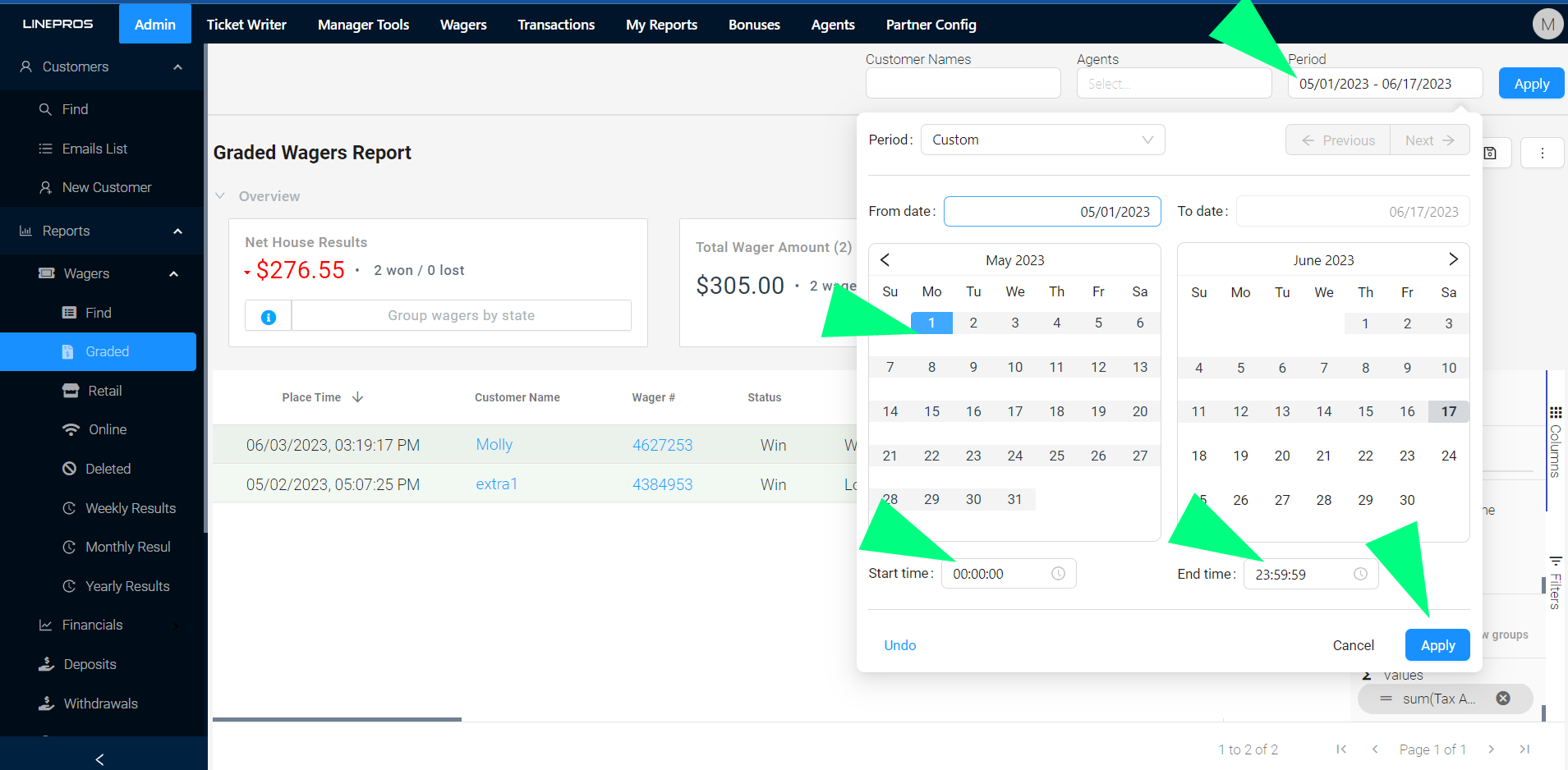
Date filtering is located in the top right of the dashboard
By clicking on the default date shown, a date modal will pop-up, in which the user can select the date the report needs to be filtered by
In the bottom of the calendars, the user can also select a time frame
Once the filtering set up is complete, click 'Apply'
Pivot Modes are located in all report dashboards.
In the right of the screen locate the option named 'Columns', and click on it: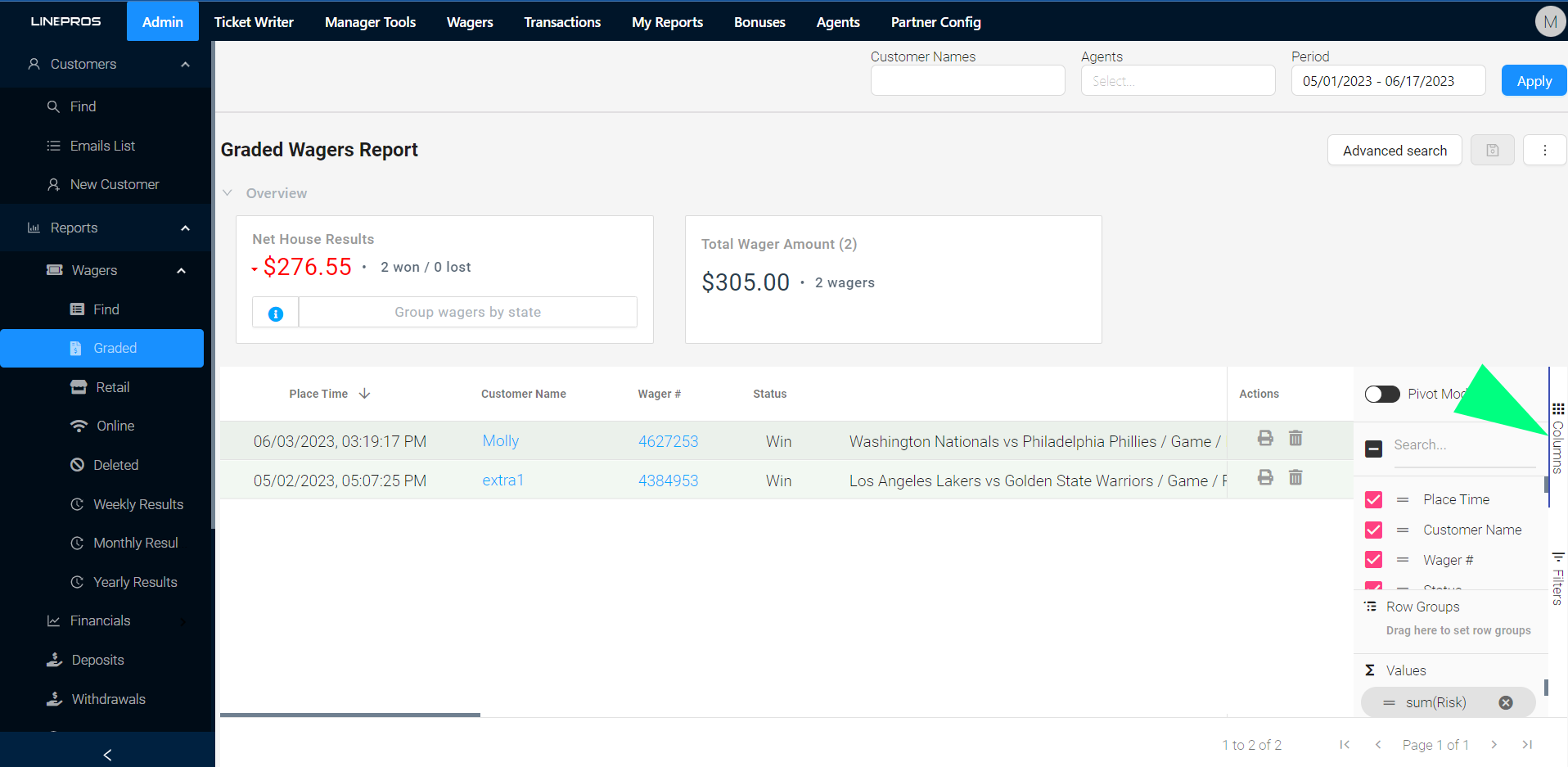
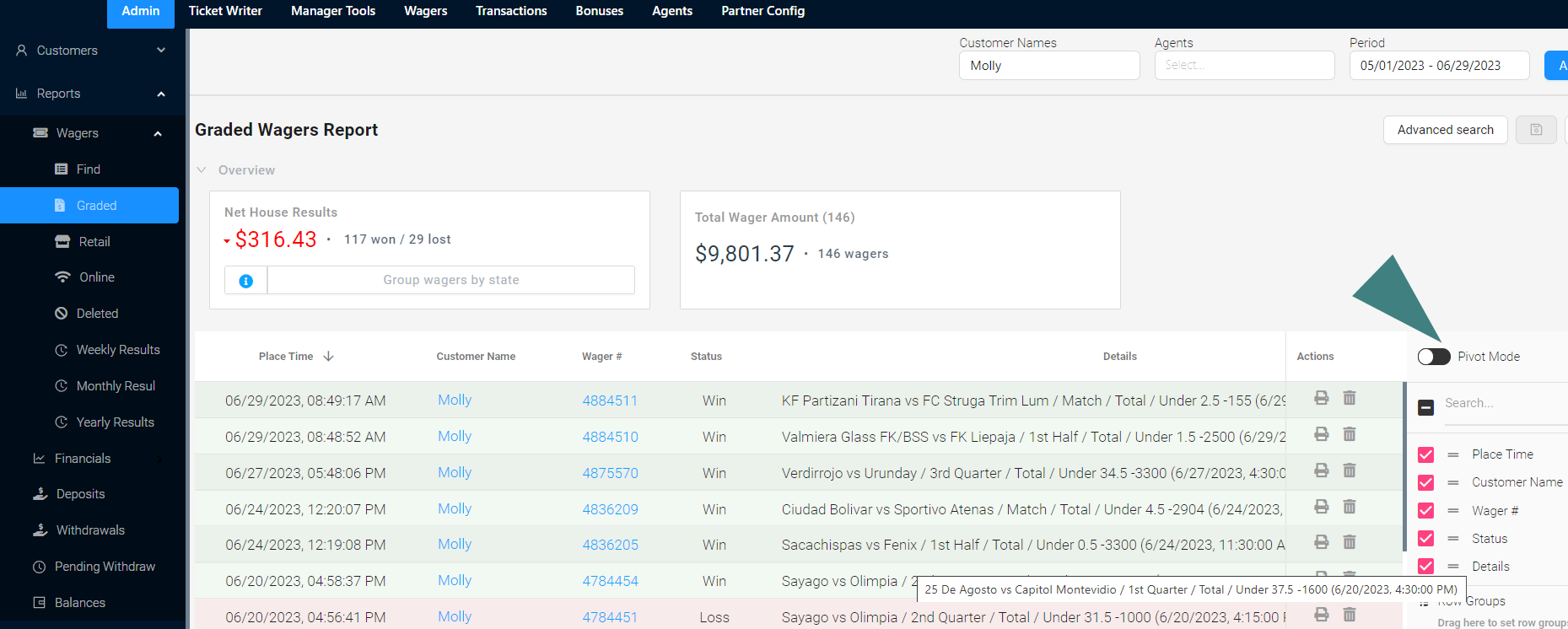 Pivot Mode Enable:
When enabled, the Pivot Mode will automatically group accordingly to the selection you clicked on.
For example, if activating Pivot Mode and clicking 'Users' in the Graded Wagers report, the report will automatically group by 'Users'.
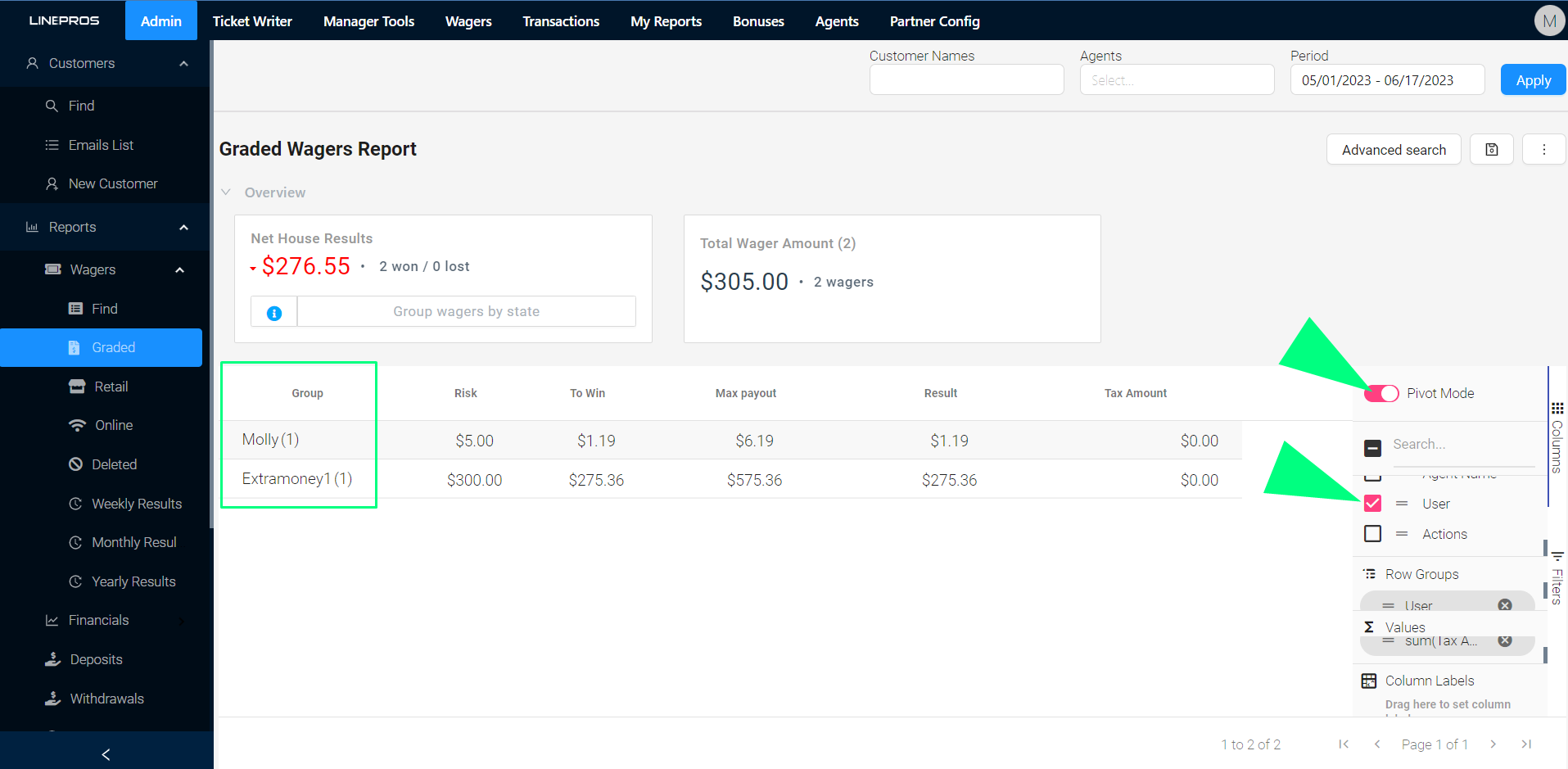 Pivot Mode Disable:
When the Pivot Mode is disabled, the report will run with the defaulted checked columns
The wagering reports section offers a wide range of filtering options, allowing users to customize the reports to meet their specific needs
The user can sort by: grade date, wager date, product, all wagers, graded wagers, online customers, etc. and as you choose from the different options, the widgets will dynamically update to reflect the changes.
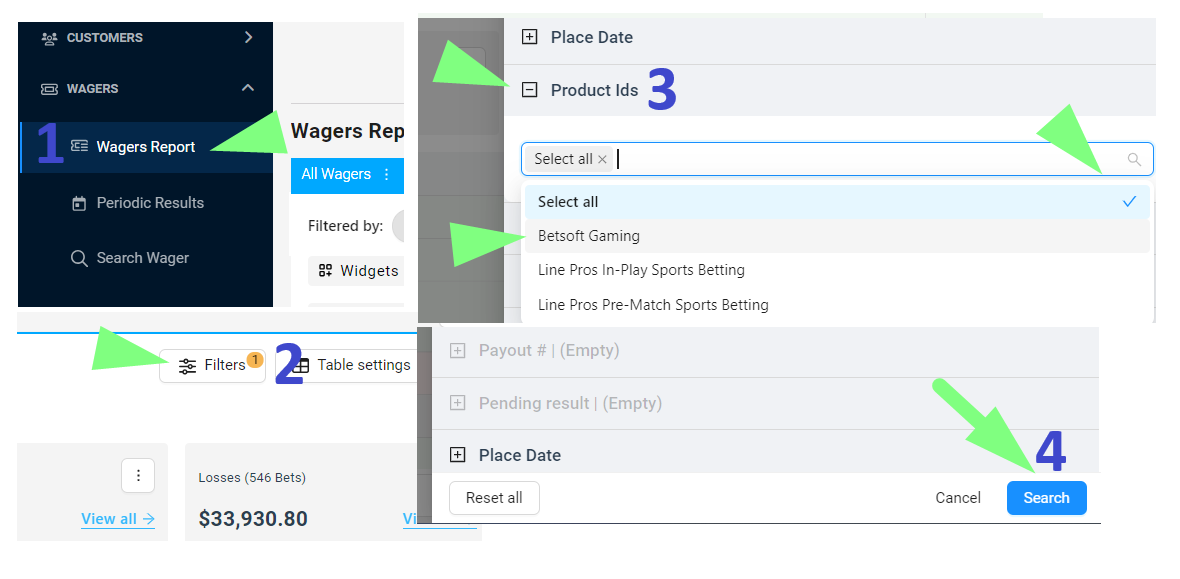
Generating a report for a specific product is simple: click the filtering option in the 'product' column and choose or remove the check from the relevant product (including in-play, prematch, casino and/or horses)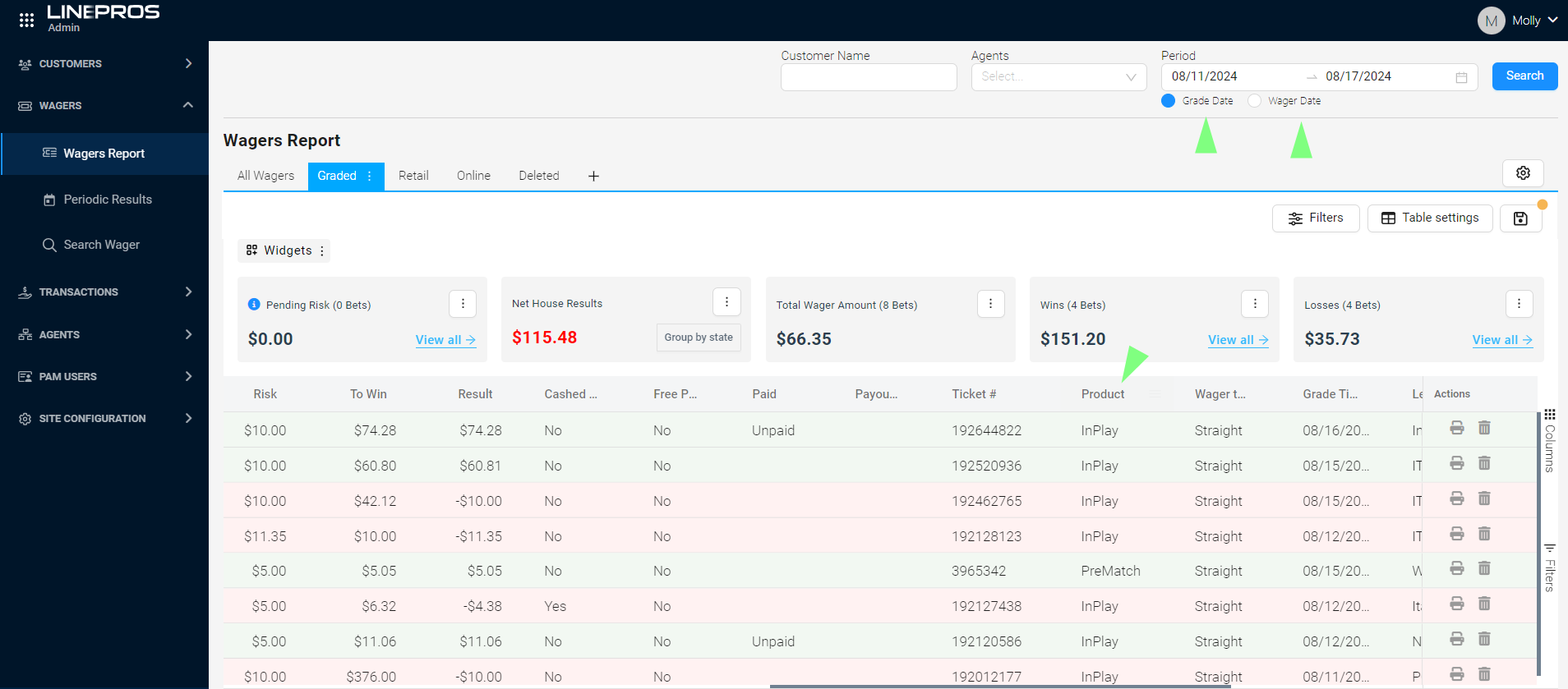 Steps for product filtering:
- Select Wagers Report.
- Click Filters.
- Scroll down to Product Ids.
- Select the product.
- Click Search.
Tab where the user can search a customer by a combination of multiple alternatives, such:
Customer ID, Customer Name, Agent, Date of Birth, Affiliate ID, Nationality, etc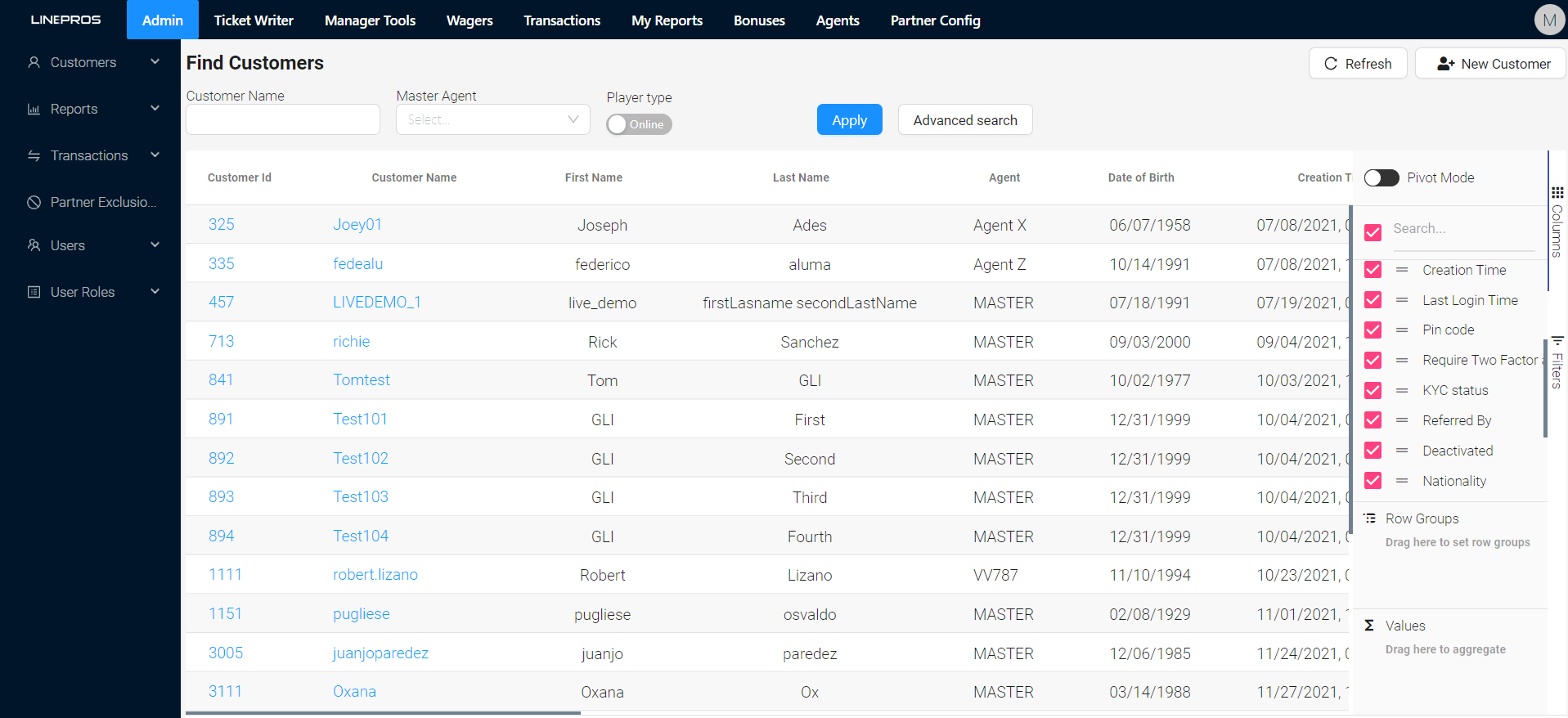
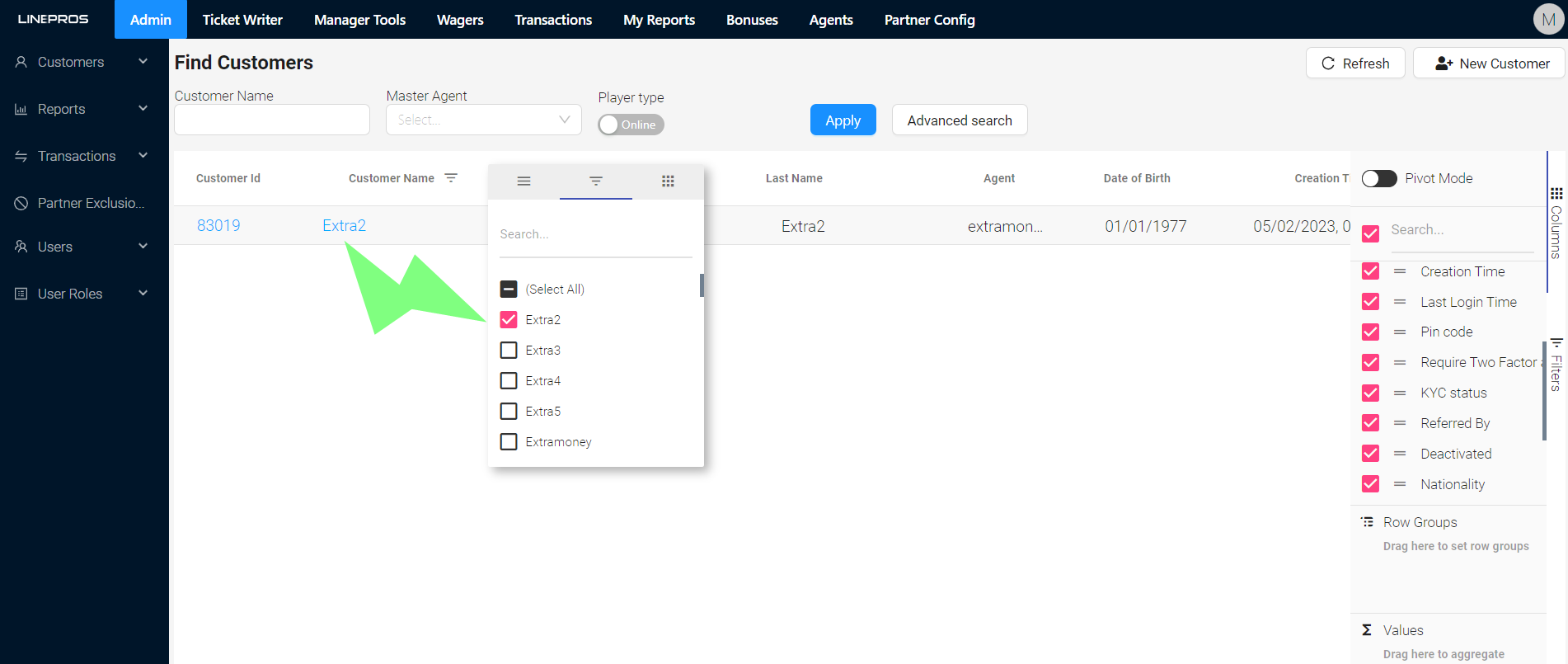
User can either use the default search bars or filter by column: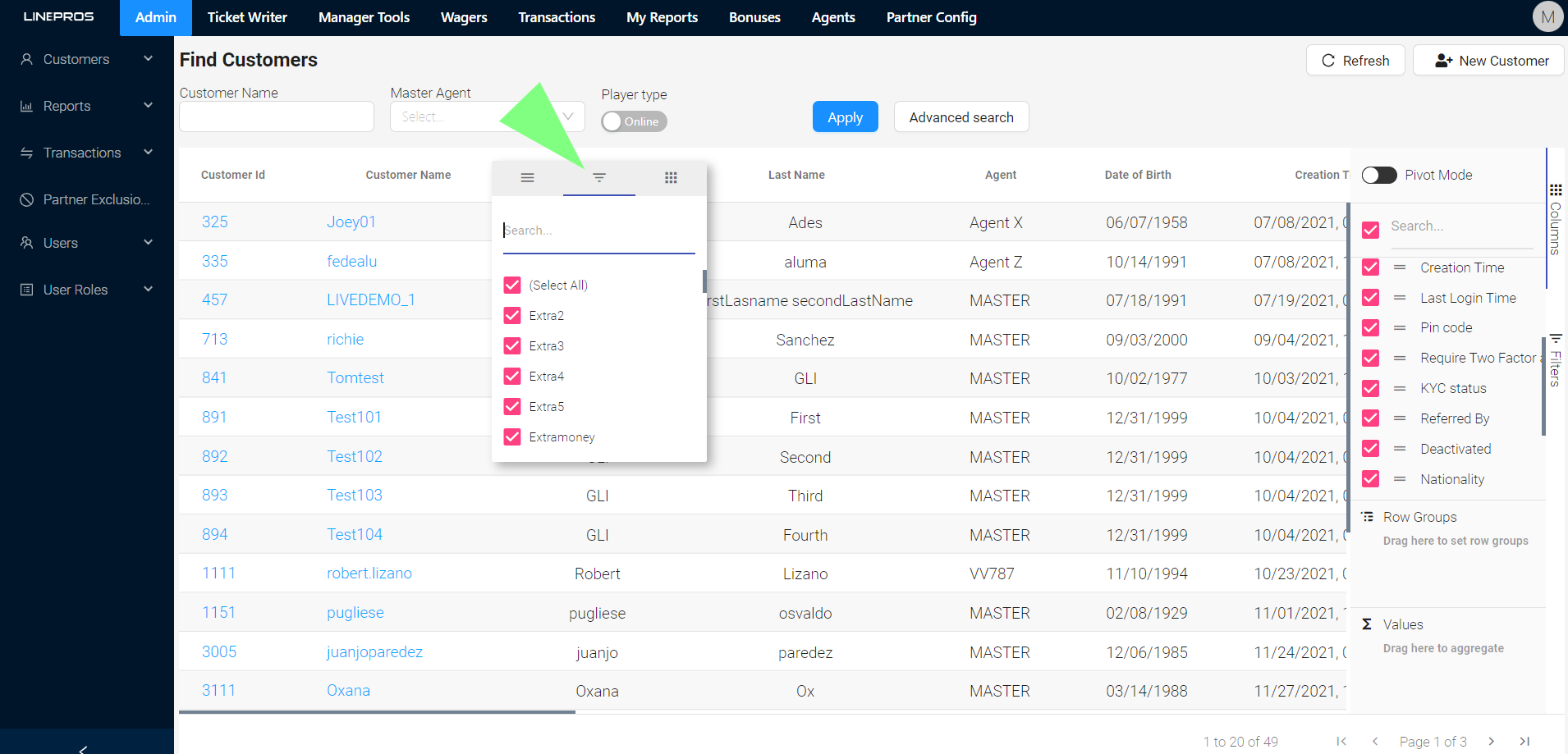
Tab where the user can locate emails of accounts whom have accepted to receive promotional emails when the account was created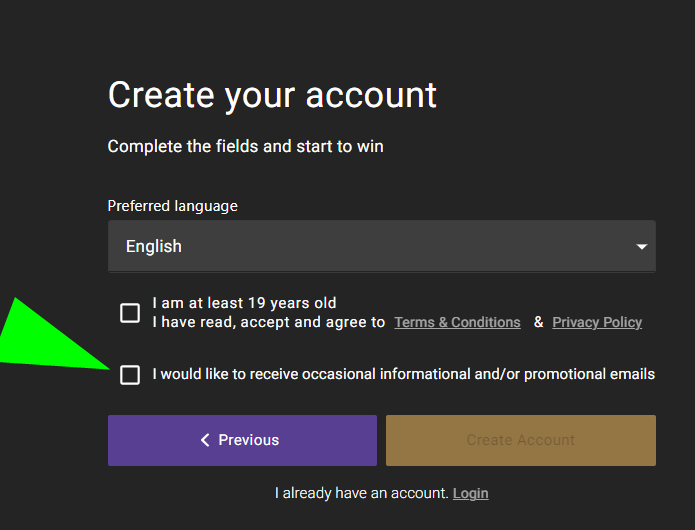
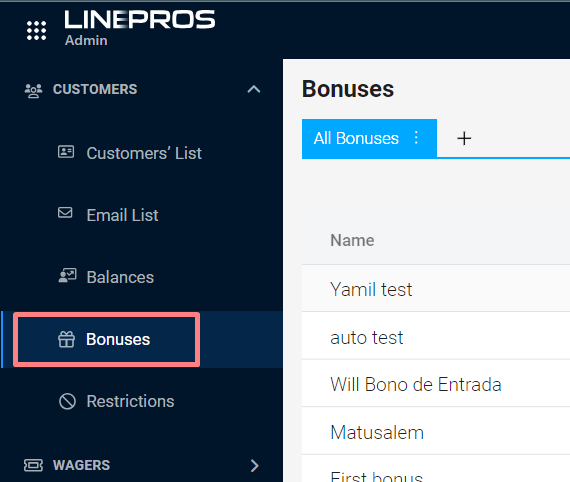
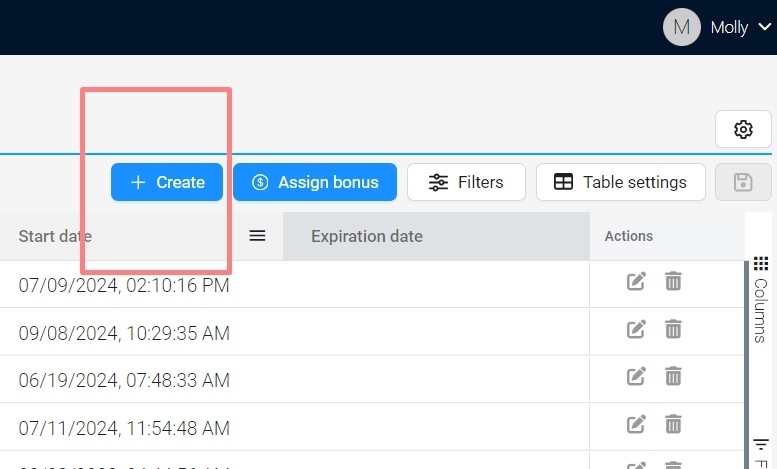
2. Choose the 'Create' tab from the menu in the upper right
3. Input the required data accordingly.
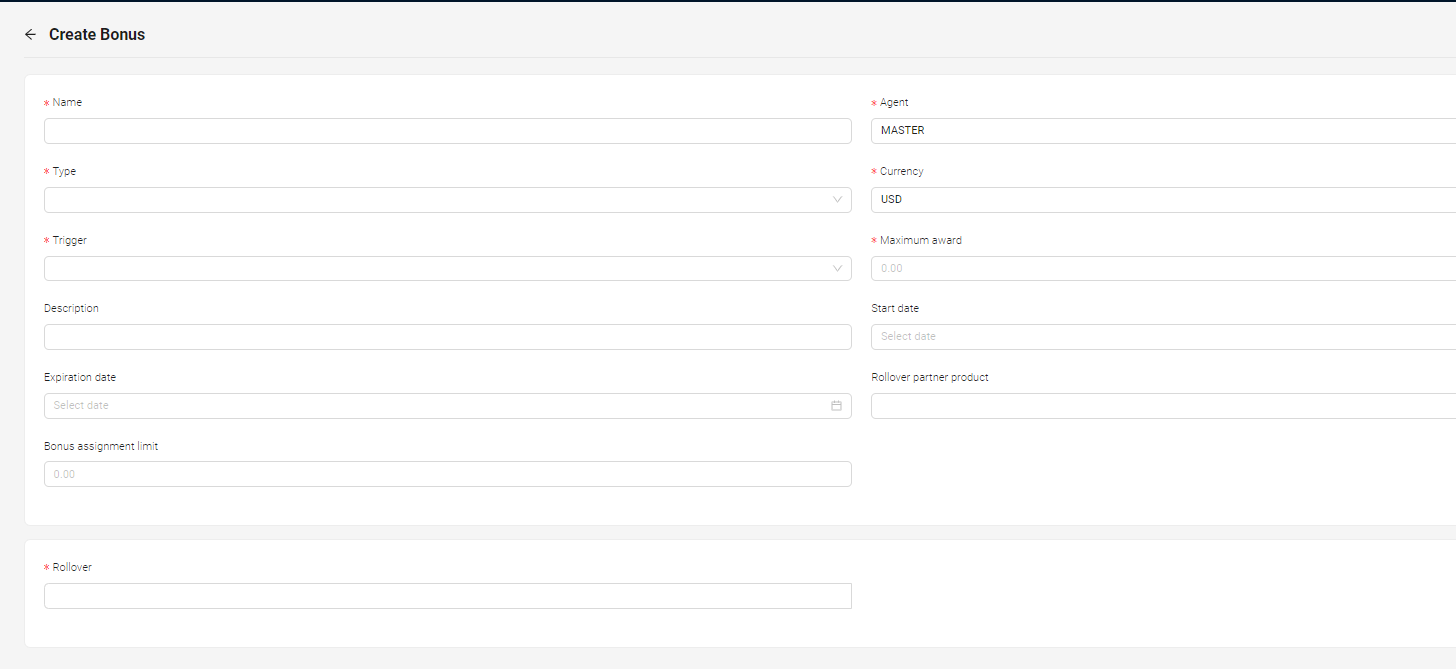
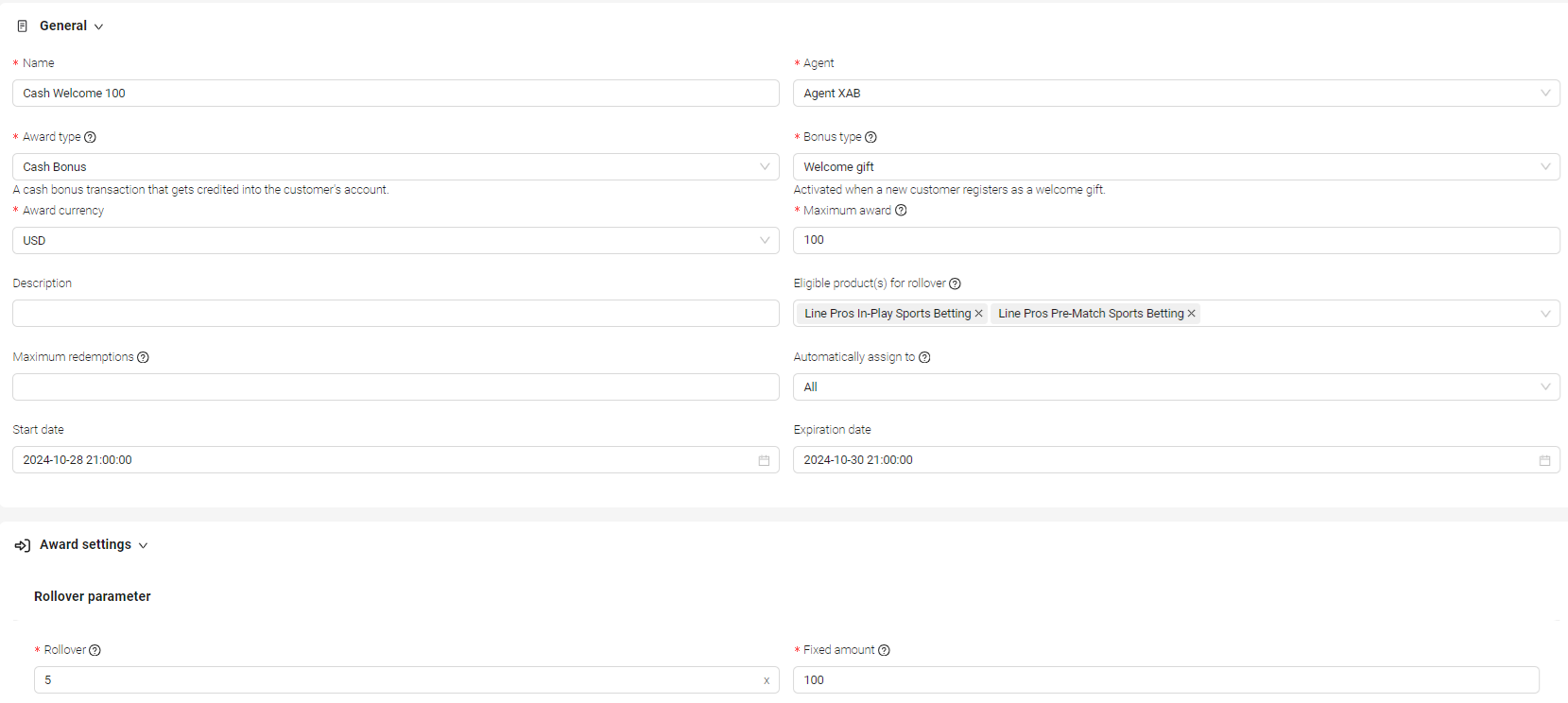
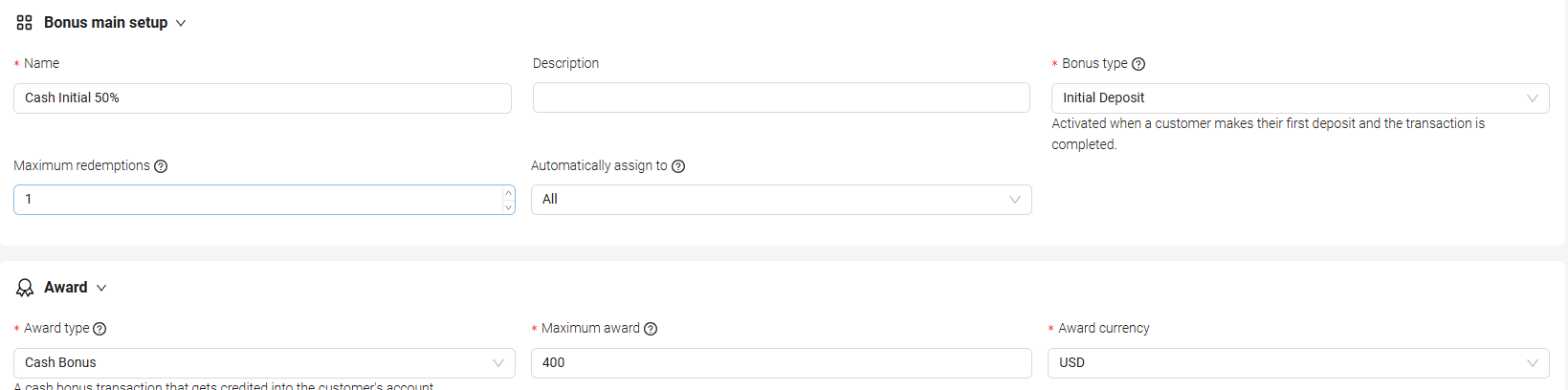
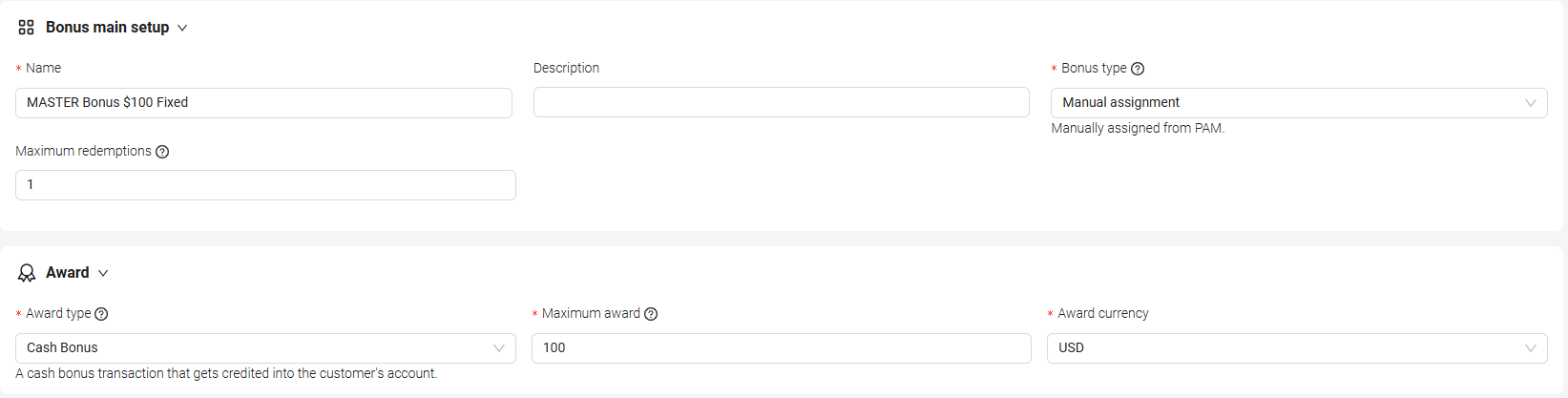
- *Name:
It denotes the internal name you'll assign to the bonus. - *Agent:
Is the Agent responsible for the group of customers who will receive the Bonus. - *Type:
Type of bonus, in this case 'cash bonus'. - *Trigger:
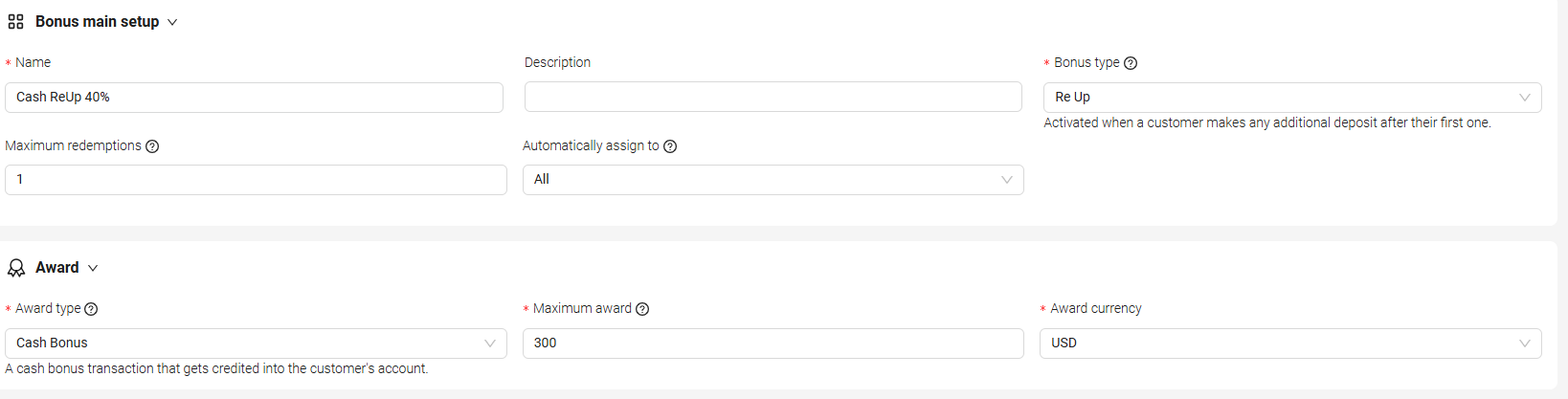
- -The available options to automatically trigger the Bonus include: Sign Up, Initial Deposit, and Re Up.
- -If the Bonus needs to be assigned manually, select the 'Discretionary' option.
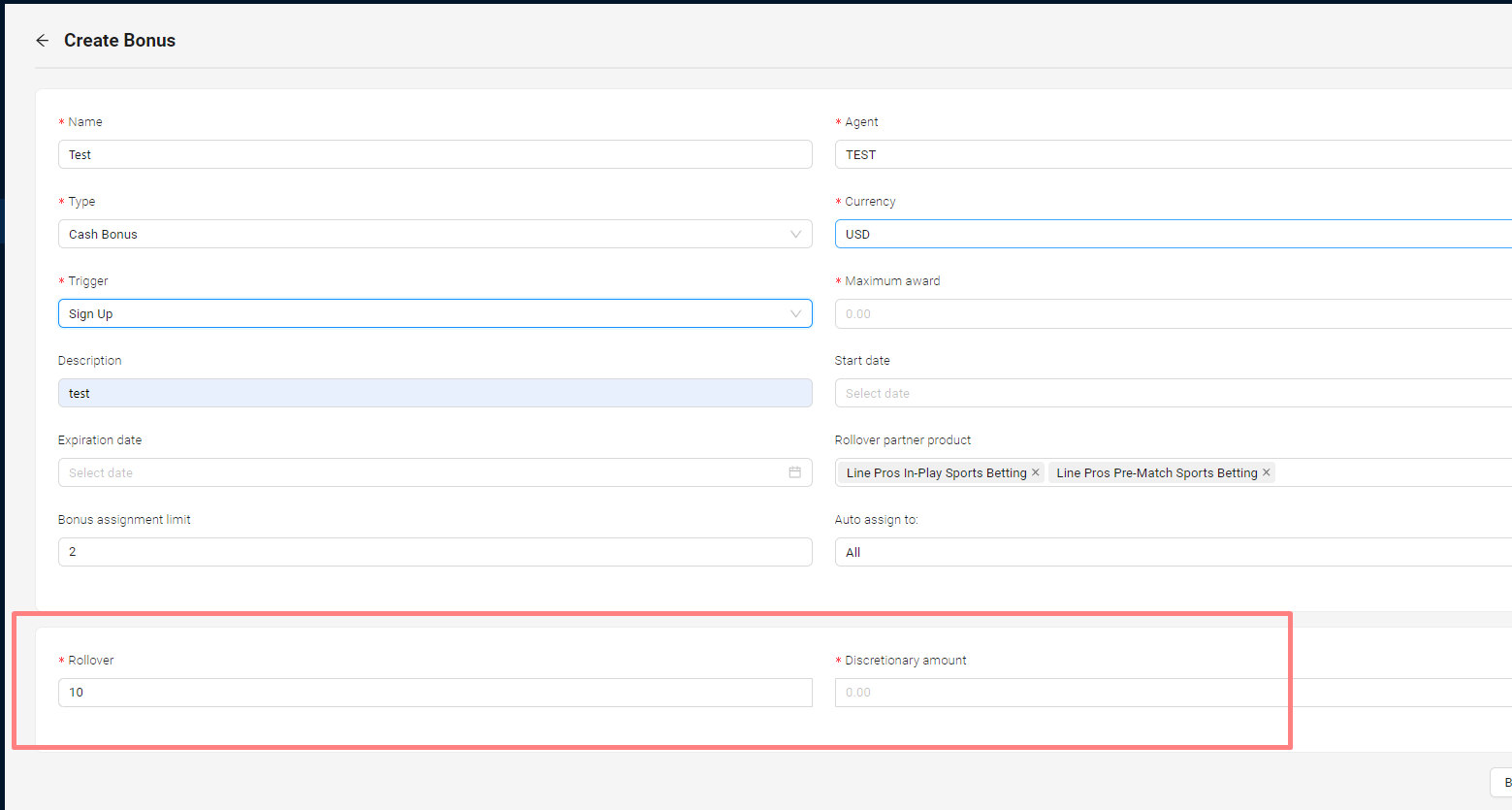
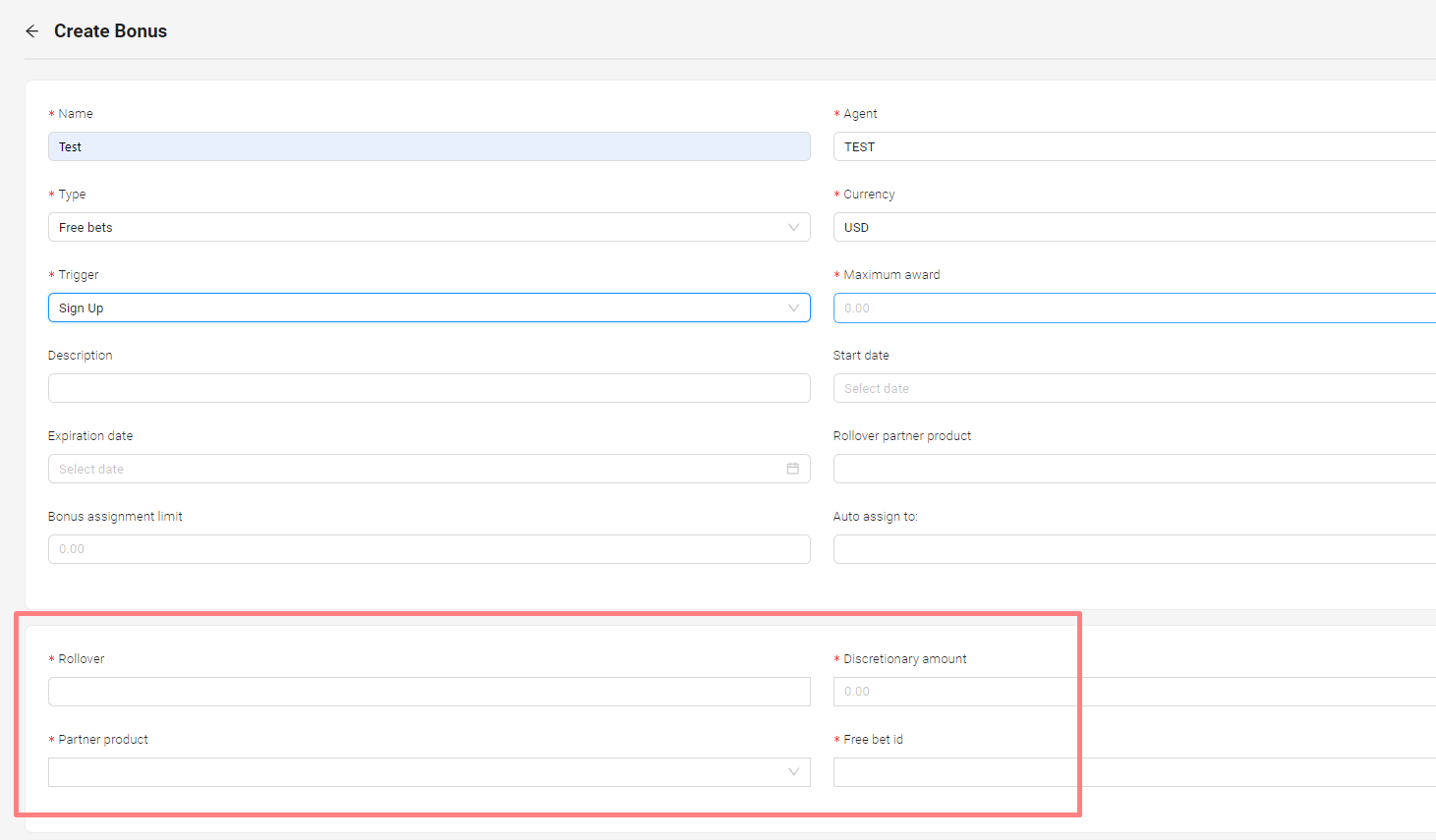
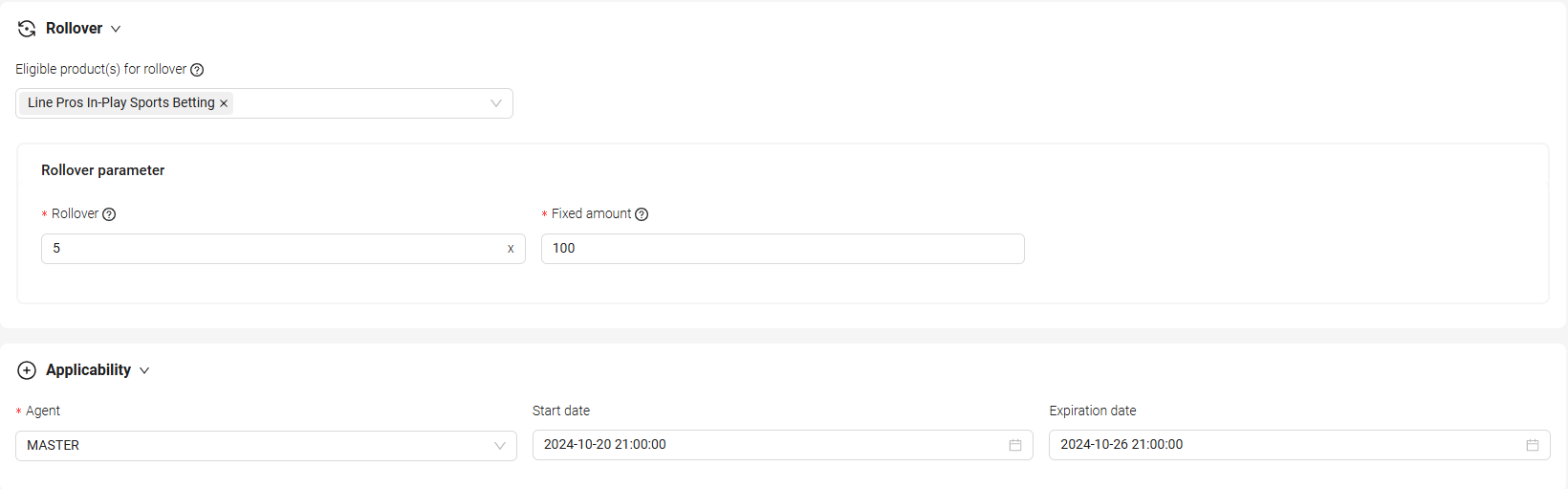
- -Sign up has the capability to use as well a discretionary amount along the rollover rather than a percentage.
- Start Date / End Date: Range of time the user wants the bonus to be applied.
- Once an automatic trigger is chosen, the 'Auto assign to' option will appear with the following choices:
Online customers only, Retail customers only, All, None. - *Maximum award: Maximum amount a customer can receive.
- Description: Blank space for the user to add notes.
- Start Date: Calendar and time selector for the user to choose from which date and time the Bonus should start.
- Expiration Date: Calendar and time selector for the user to choose from which date and time the Bonus should finish.
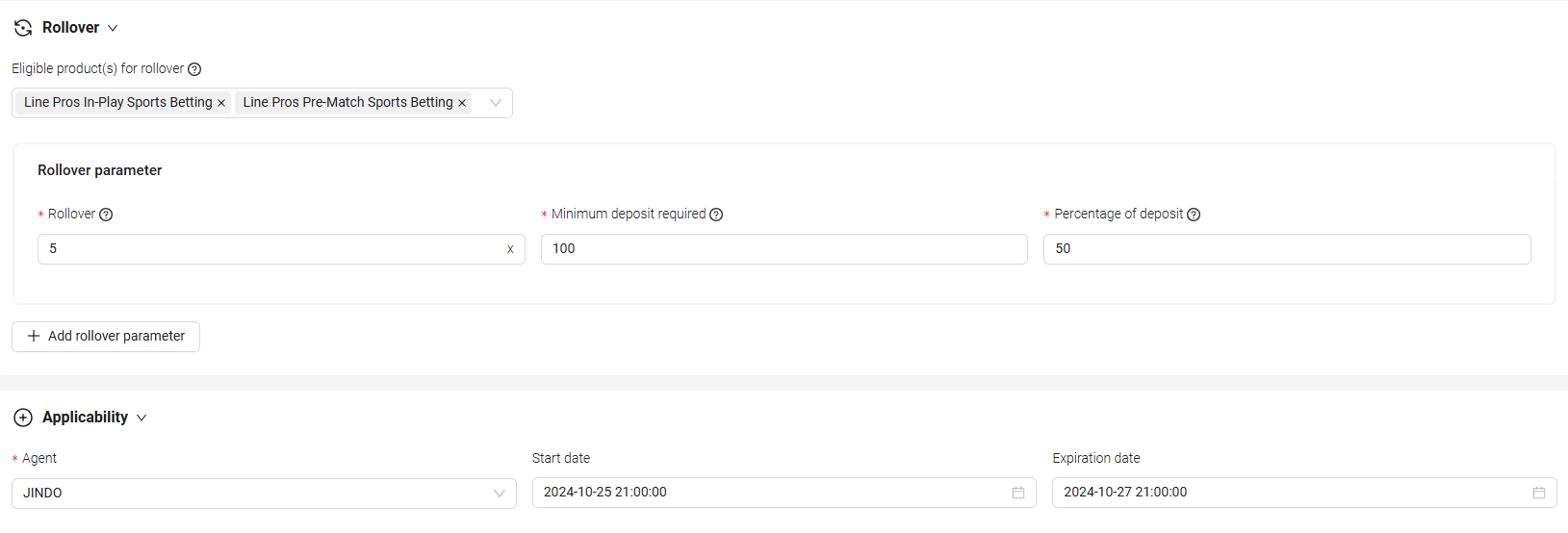
- *Rollover: Requirement to wager a certain amount of money before the client can withdraw any winnings from a bonus or promotion. This count towards all graded wagers with the exception of cancellations, and the base amount from which the rollover starts includes only the bonus amount given.
- Rollover partner product: Users can either pick certain products or include all products to meet the rollover requirement.
- Bonus assignment limit: The number of times the customer is eligible to receive the bonus.
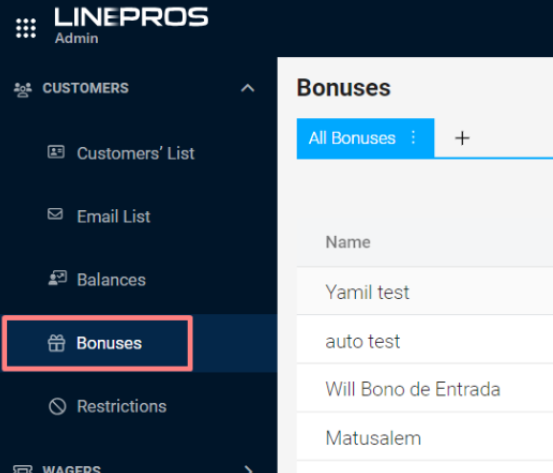
2. Choose the 'Create' tab from the menu in the upper right
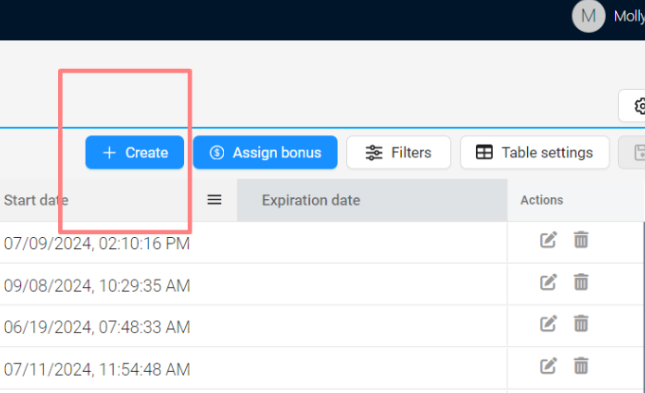
3. Input the required data accordingly.
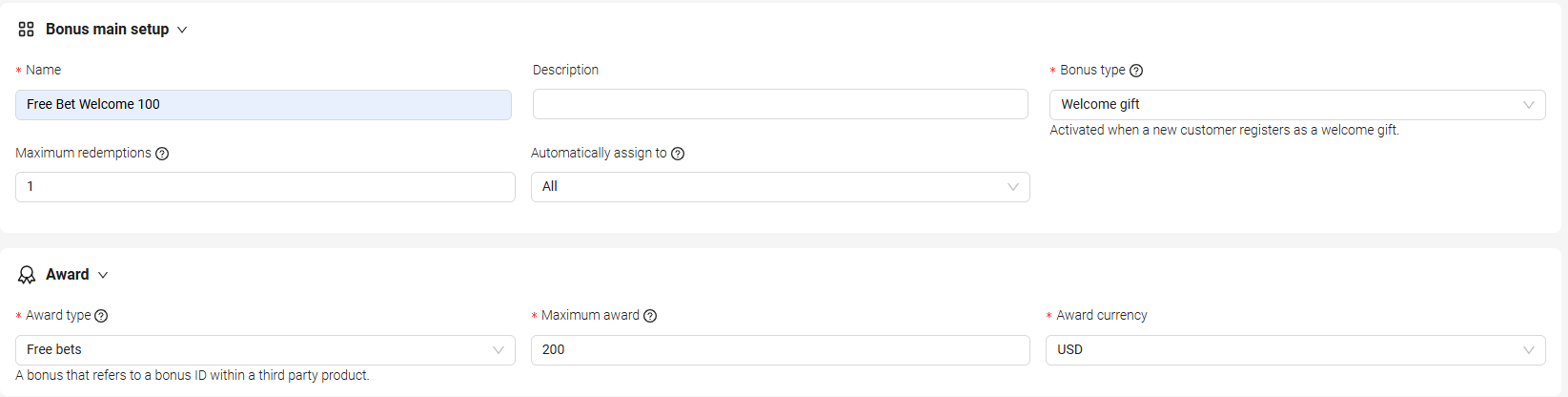
- *Name:
It denotes the internal name you'll assign to the bonus. - *Agent:
Is the Agent responsible for the group of customers who will receive the Bonus. - *Type:
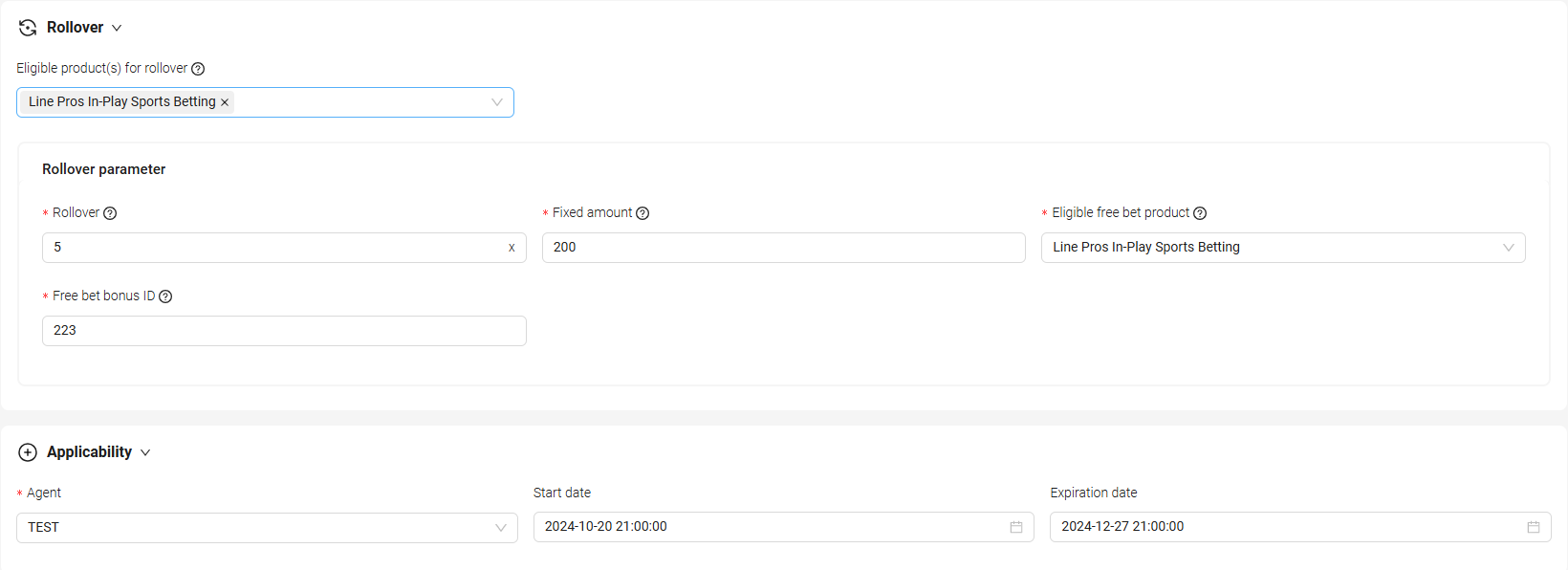
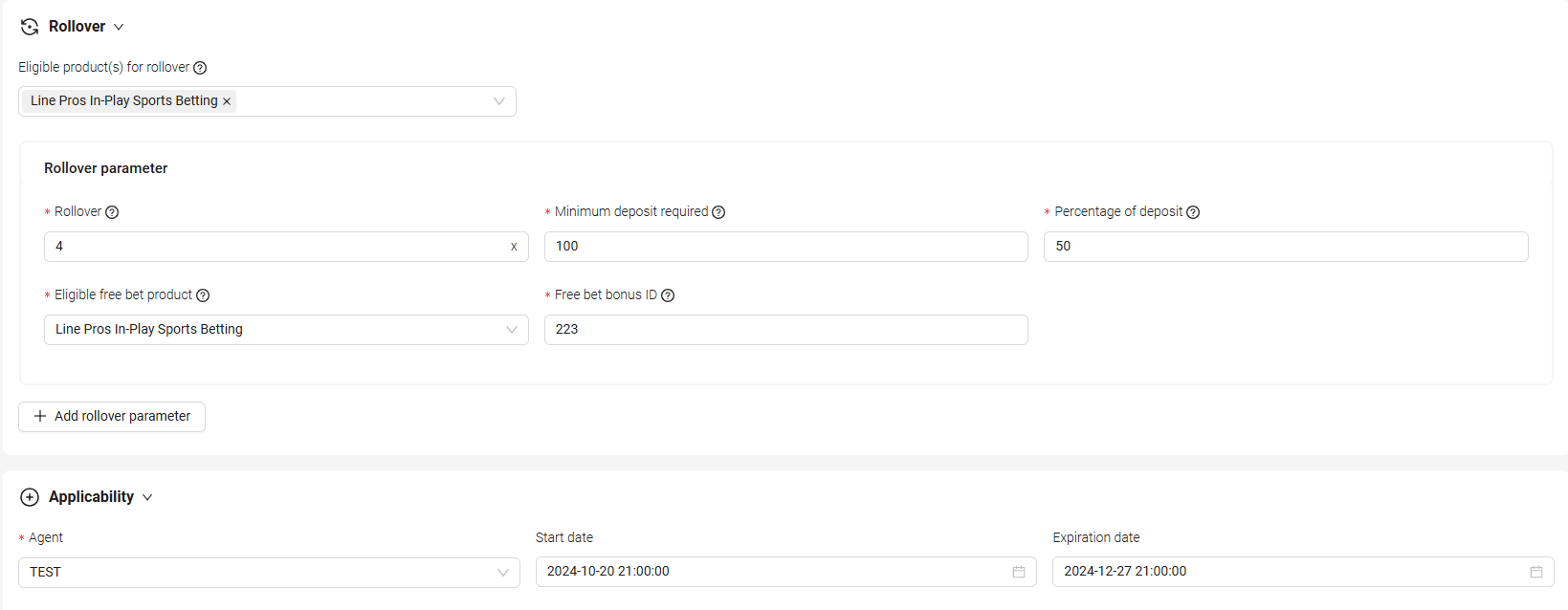
Type of bonus, in this case 'Free bets'. - *Trigger:
- -The available options to automatically trigger the Bonus include: Sign Up, Initial Deposit, and Re Up.
- -If the Bonus needs to be assigned manually, select the 'Discretionary' option.
- -Sign up has the capability to use as well a discretionary amount along the rollover rather than a percentage.
- Once an automatic trigger is chosen, the 'Auto assign to' option will appear with the following choices: Online customers only, Retail customers only, All, None.
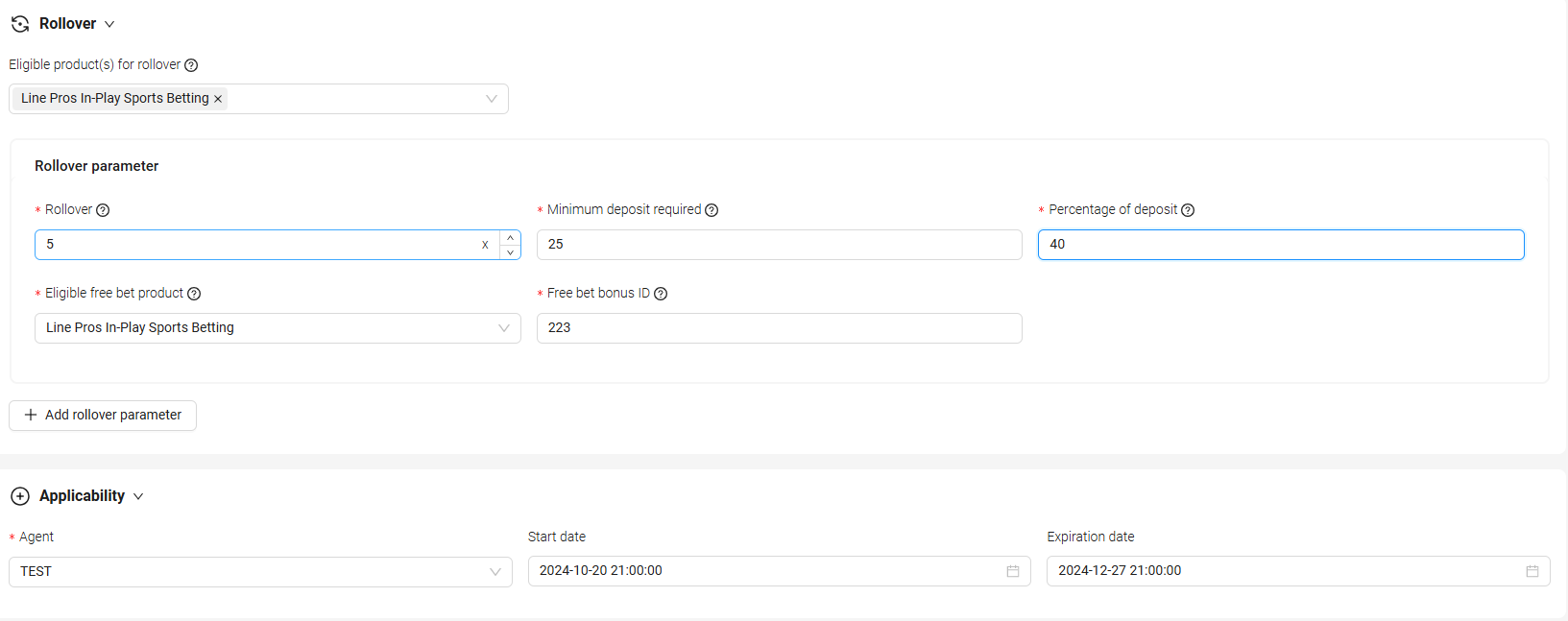
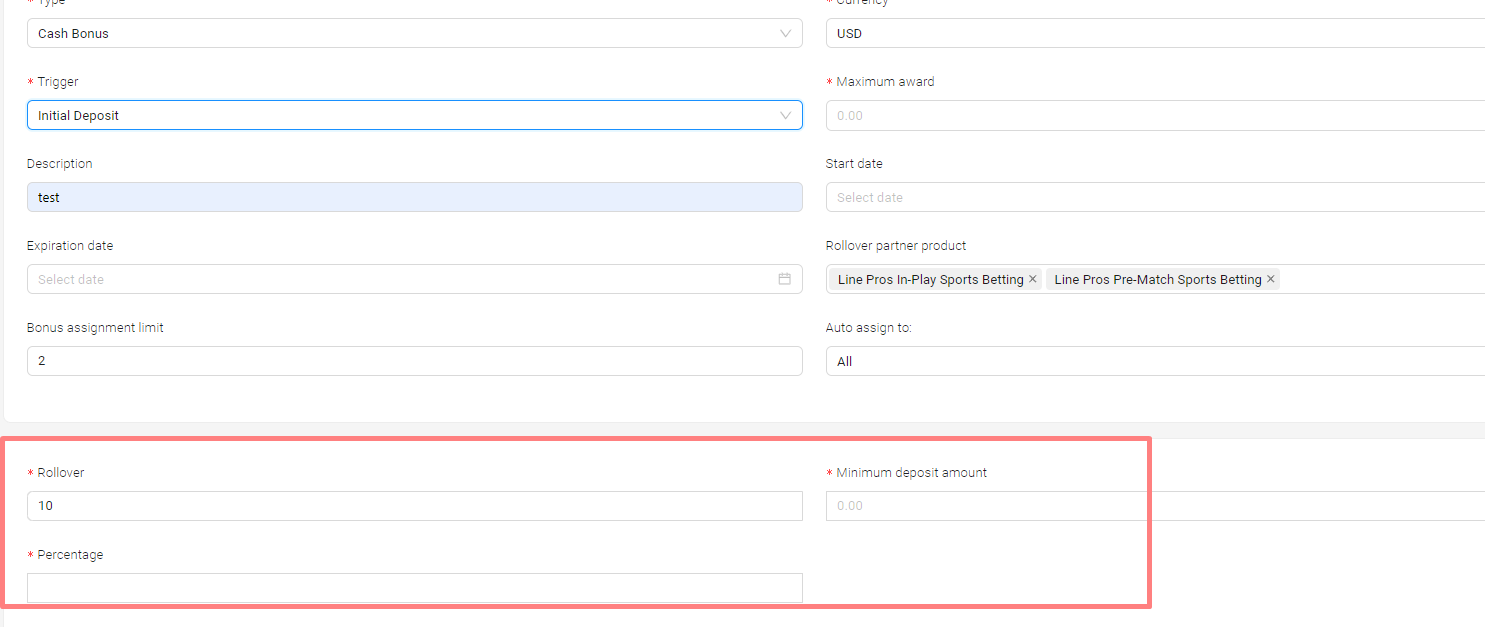
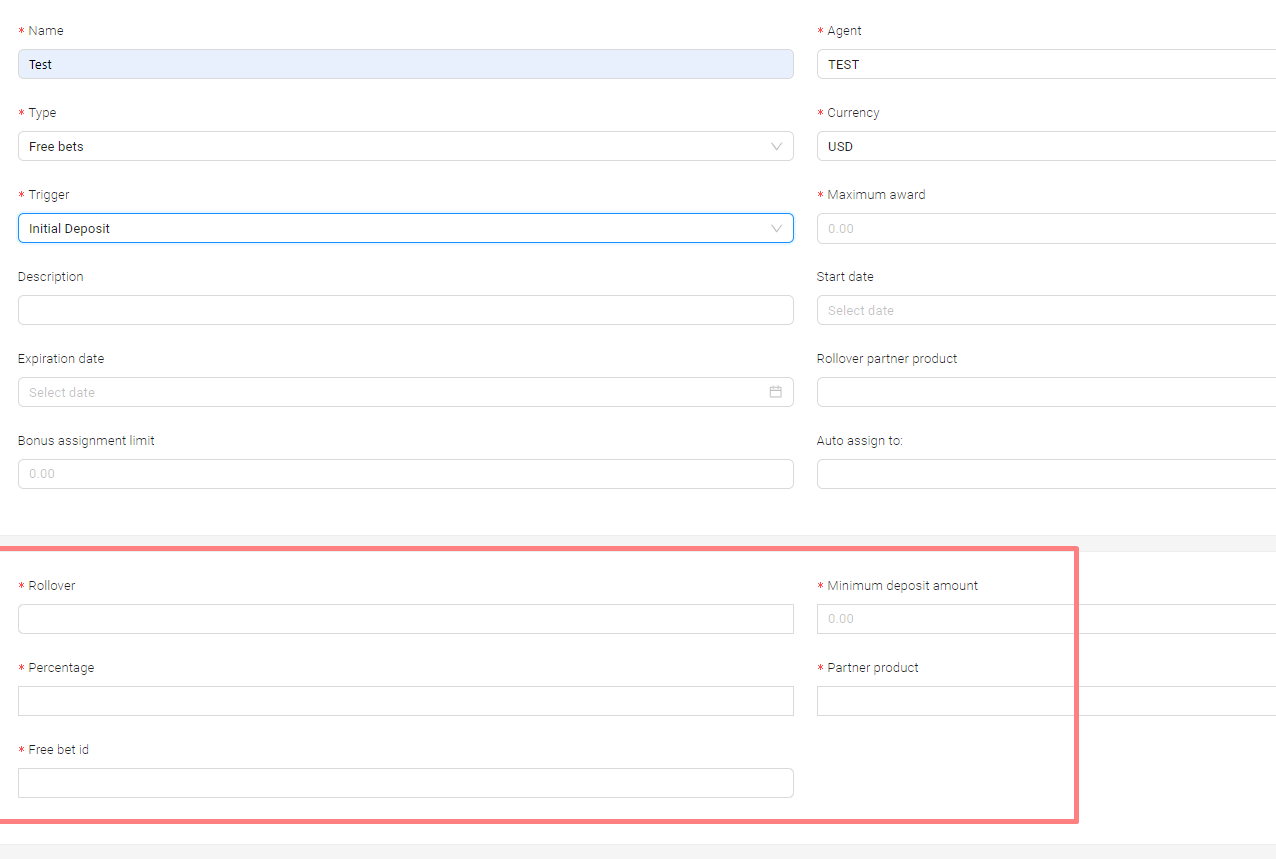
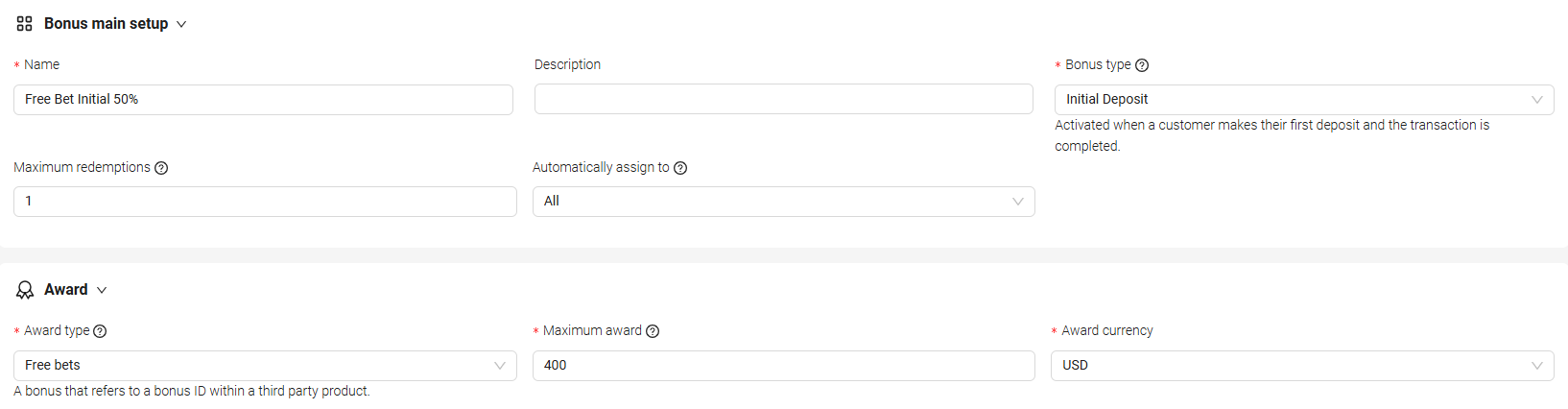
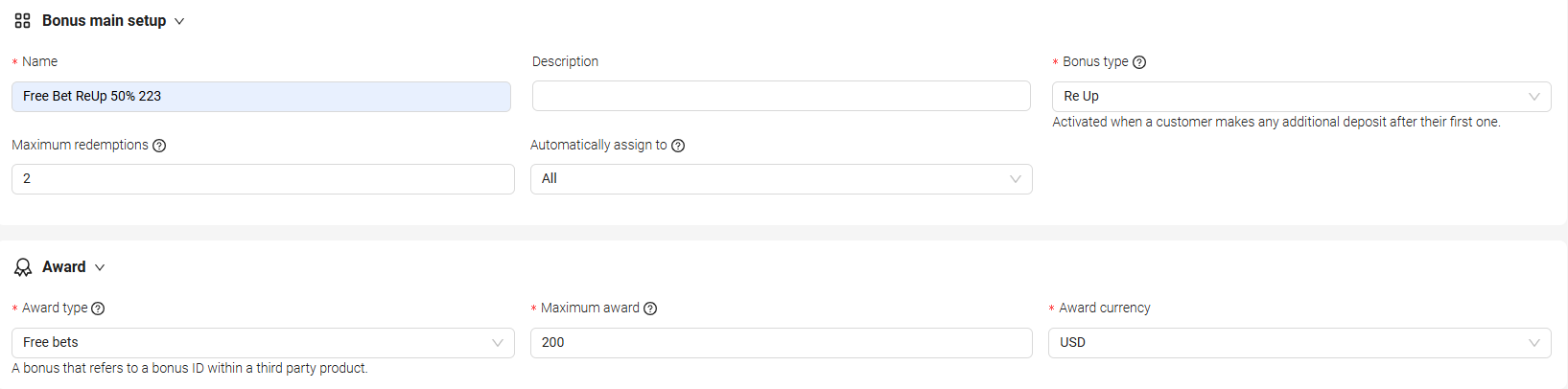
- Once an automatic trigger is chosen, the following criteria is to be filled out:
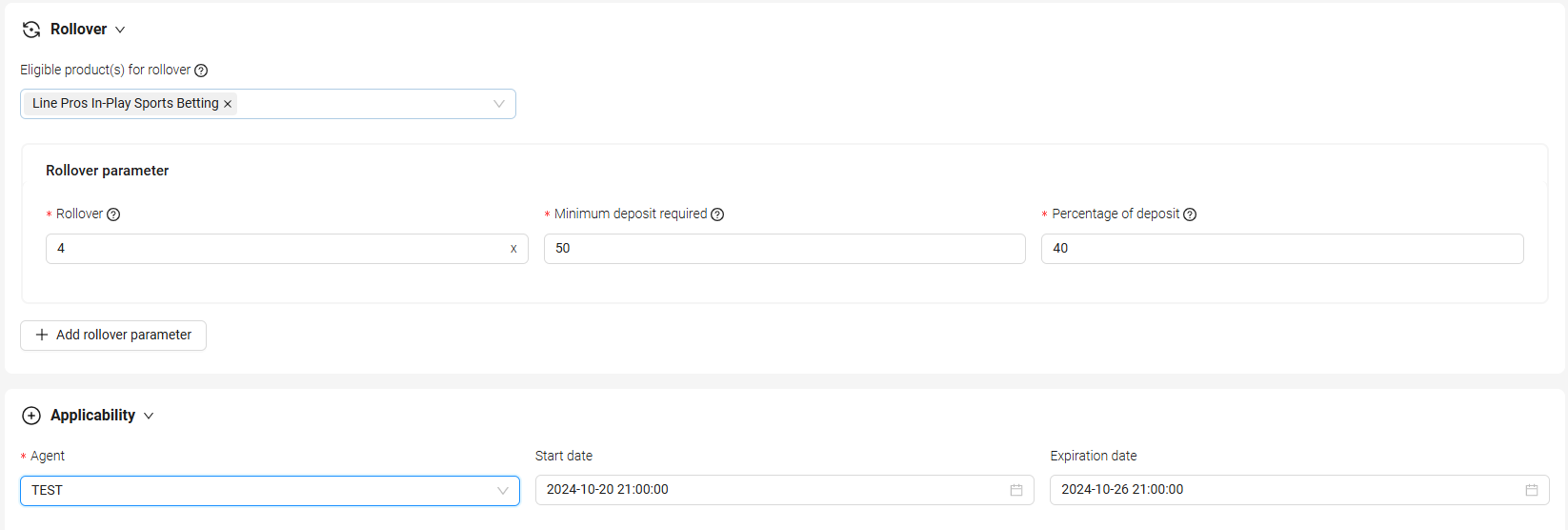
- -Rollover: Rollover times required.
- -Minimum Deposit amount: Minimum deposit amount from which the bonus will start triggering.
- -Percentage: Percentage amount from the deposit that the user wants to convert into the Free bet.
- -Partner product: Being a Free Bet, only one product can be selected.
- -Free Bet ID: Enter the ID of the Free Bet Profile previously created in Manager Tools.
- Start Date / End Date: Range of time the user wants the bonus to be applied.
- *Maximum award: Maximum amount a customer can receive.
- Start Date: Calendar and time selector for the user to choose from which date and time the Bonus should start.
- Expiration Date: Calendar and time selector for the user to choose from which date and time the Bonus should finish.
- *Rollover: Requirement to wager a certain amount of money before the client can withdraw any winnings from a bonus or promotion. This count towards all graded wagers with the exception of cancellations, and the base amount from which the rollover starts includes only the bonus amount given.
- Rollover partner product: Users can either pick certain products or include all products to meet the rollover requirement.
- Bonus assignment limit: The number of times the customer is eligible to receive the bonus.
1. Select 'Assign Bonus' from the menu located at the top.
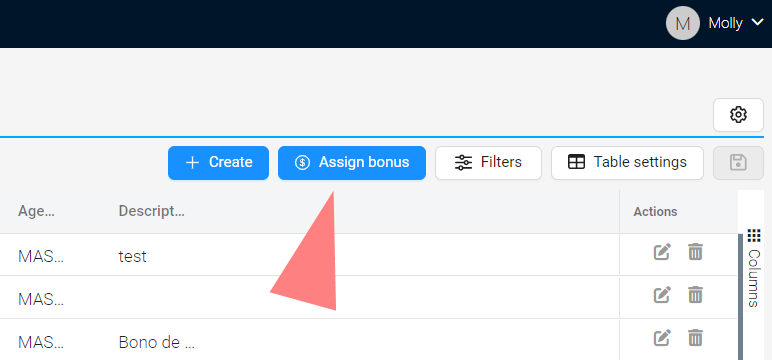
2. Users can pick either a single assignment or a range of assignments:
2.1 Single Assignment
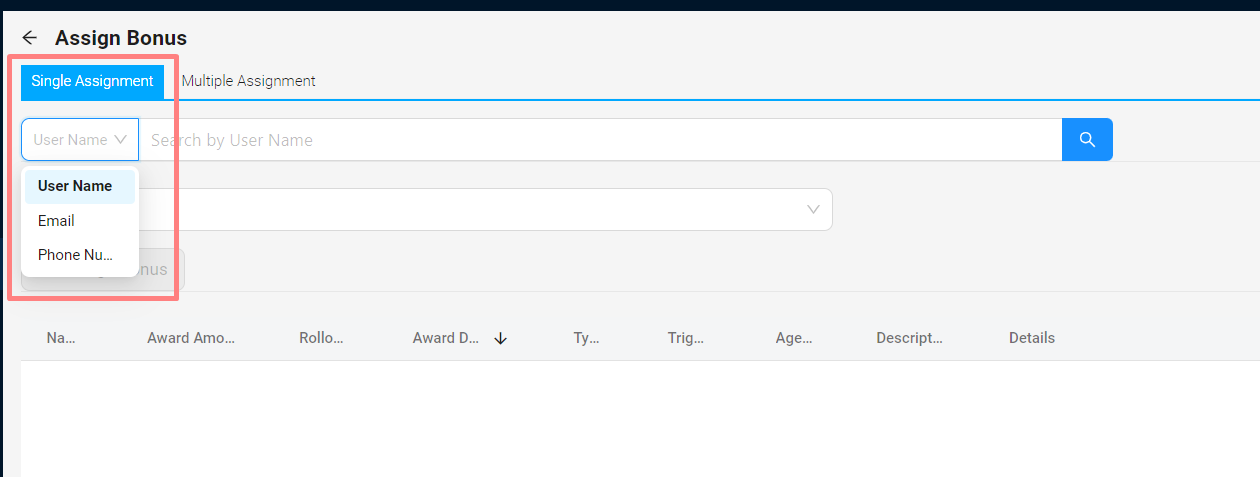
- - Accounts can be located by username, email address, or phone number.
- - Click the 'select bonus' option.
- - Scroll among the list of bonuses to make your selection.
- - Once the bonus is selected, apply '+Assign Bonus'.
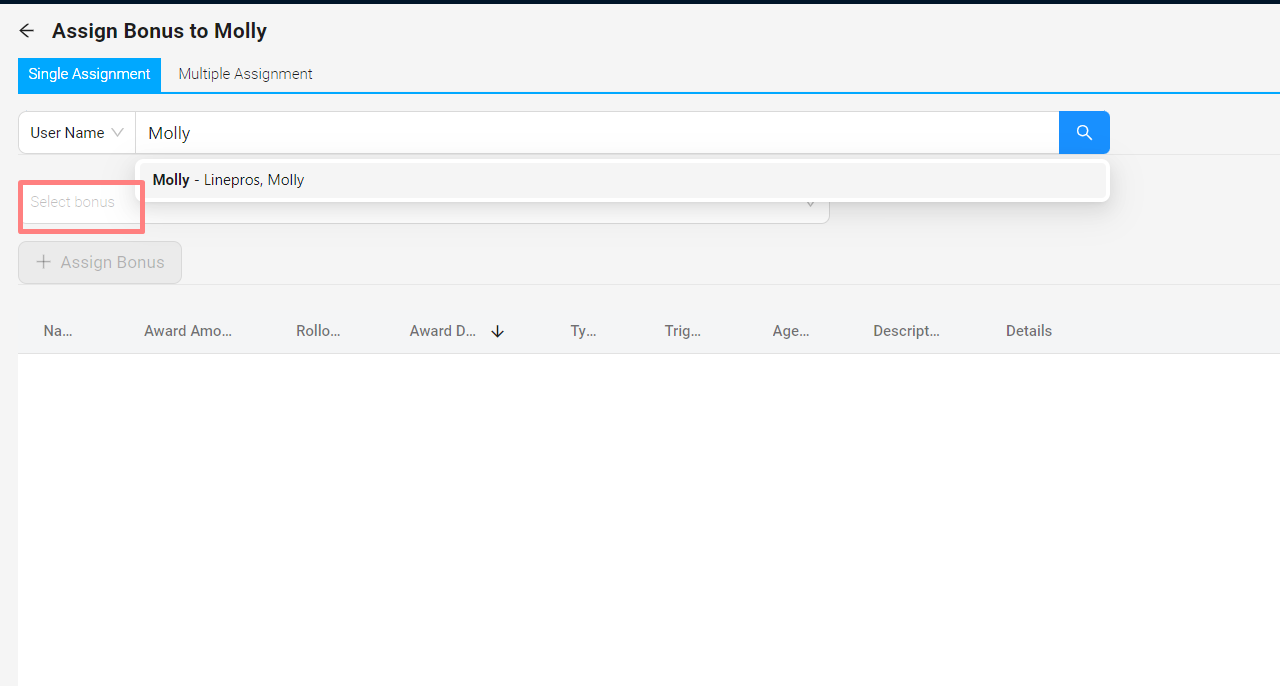
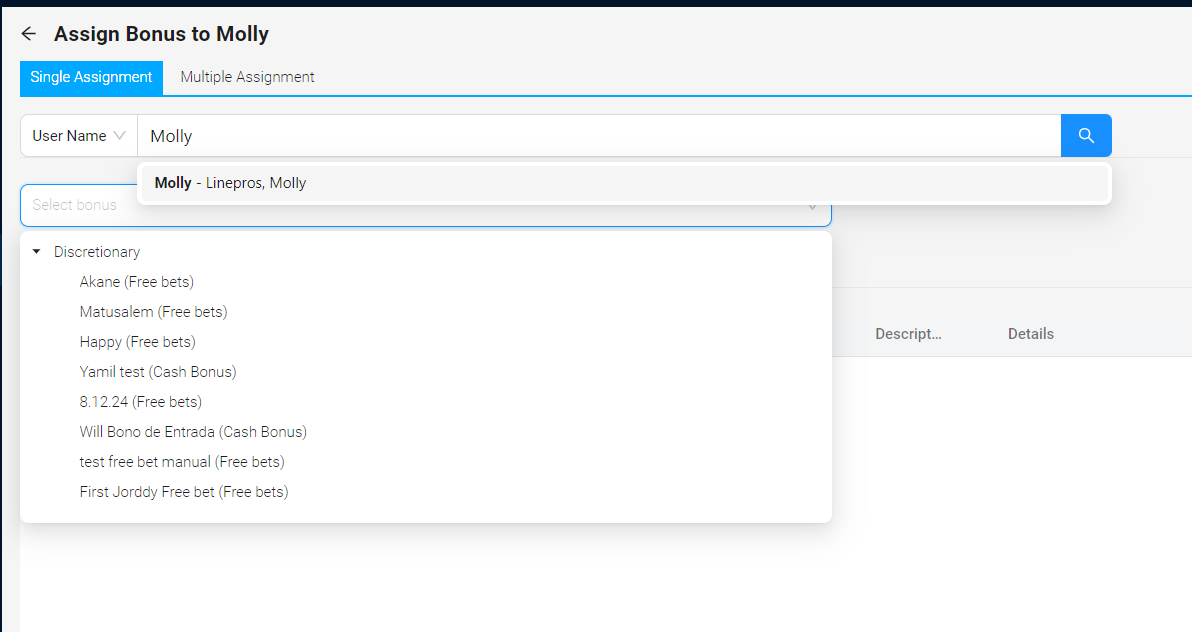
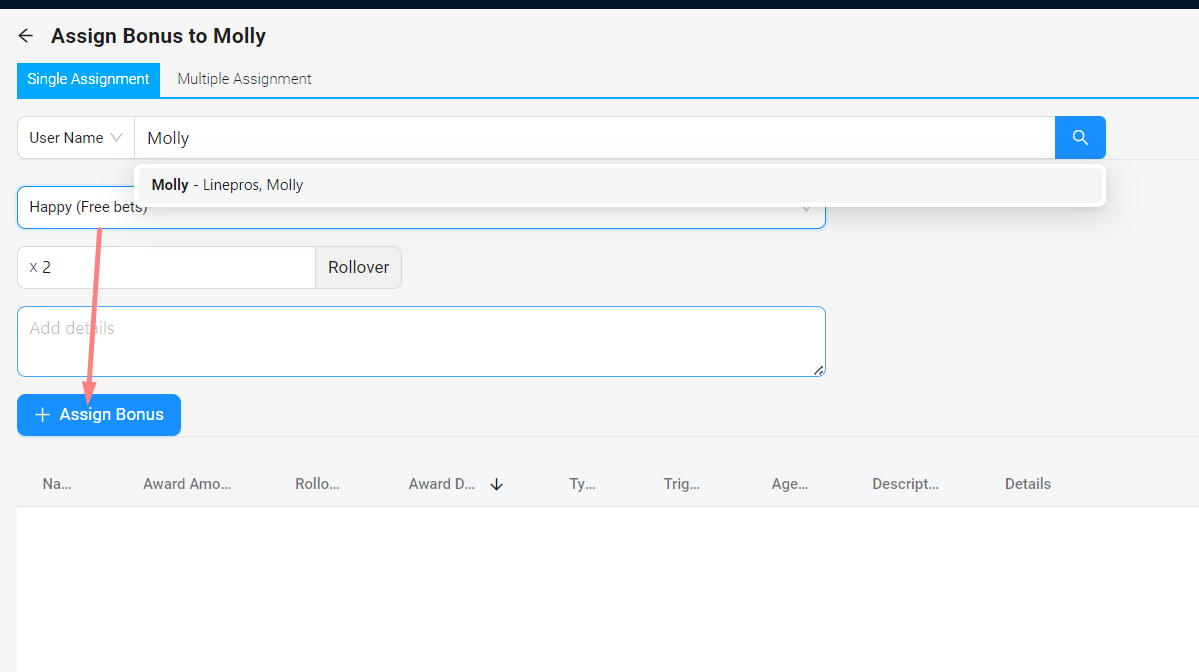
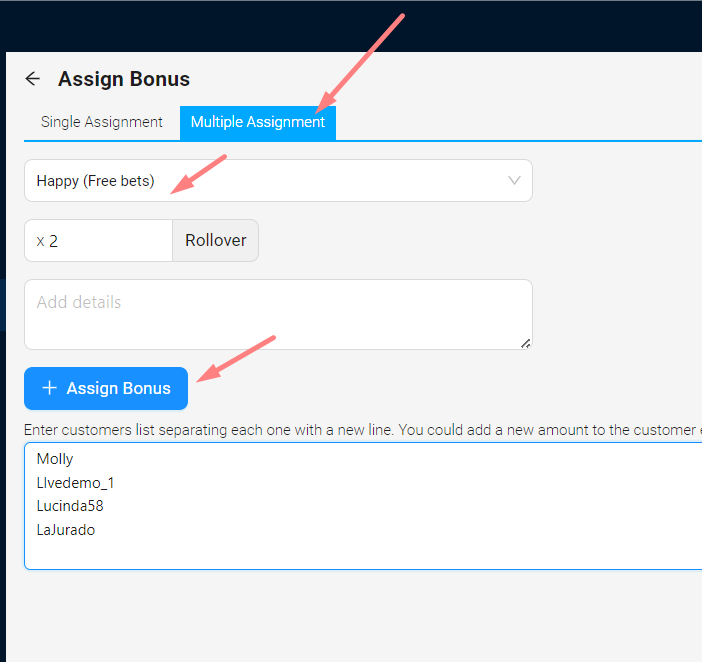
2.2 Multiple Assignments
- - Accounts can be located by username, email address, or phone number.
- - Click the 'Multiple Assignment' option.
- - Scroll among the list of bonuses to make your selection.
- - Paste a list of accounts.
- - Click Assign Bonus.
In sports betting, a rollover refers to the number of times the client must wager the deposit and bonus before a withdraw of winnings is processed. Sportsbooks use rollover requirements to prevent bonus abuse and ensure that players use their bonus funds to place bets on their platform.
The Rollover is an 'x' amount of times the money has to be used, in our product, based on the Bonus.
The 'Base amount' is the one that counts towards the Rollover, that means, the lower amount between the Risk and Win is the amount that will impact the deduction of the Rollover.
Bonus main setup & Award
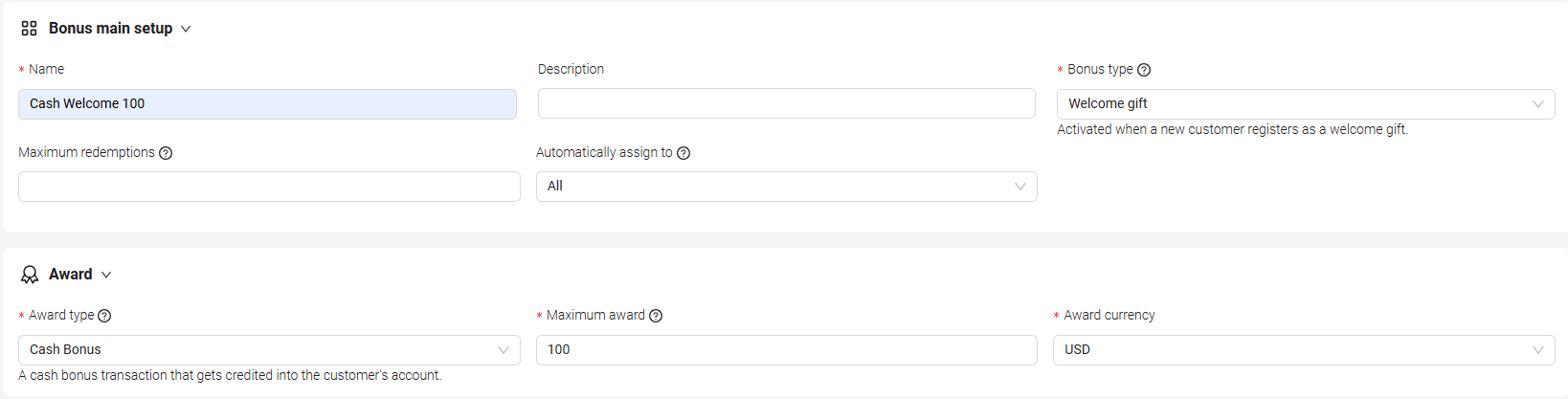
Rollover & Applicability
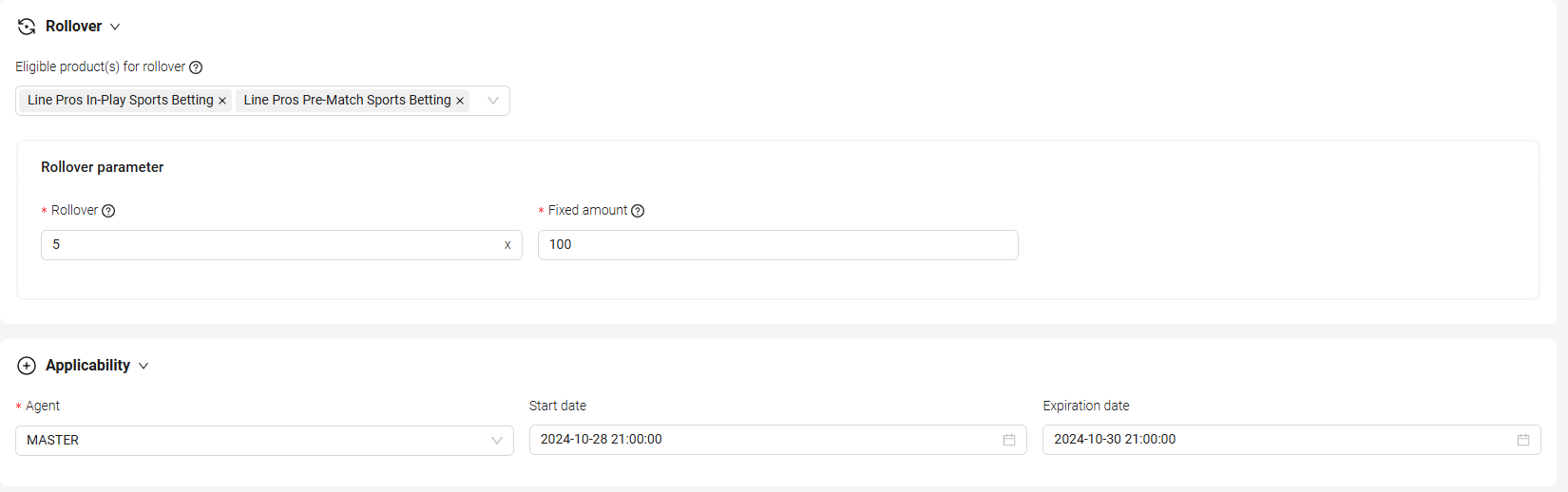
Bonus main setup & Award
Rollover & Applicability
Bonus main setup & Award
Rollover & Applicability
Bonus main setup & Award
Rollover & Applicability
Bonus main setup & Award
Rollover & Applicability
Bonus main setup & Award
Rollover & Applicability
Bonus main setup & Award
Rollover & Applicability